
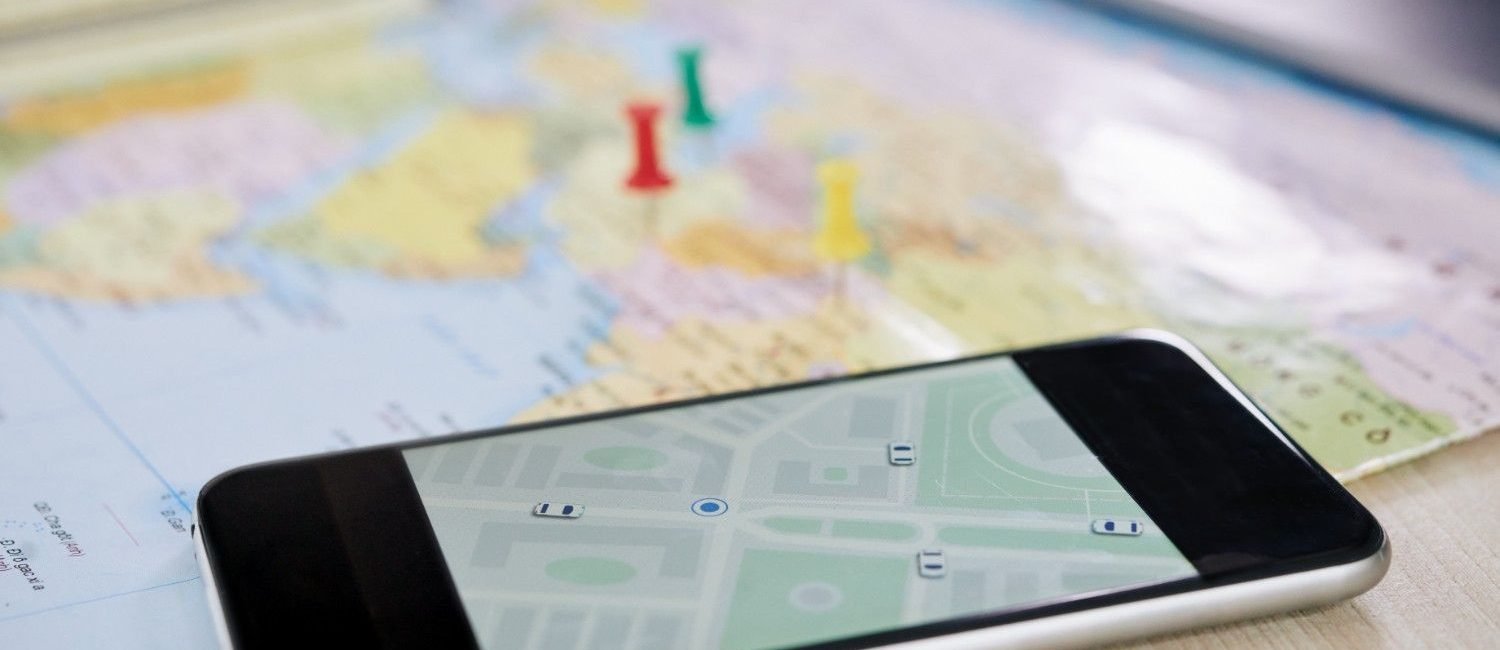
Google Maps is one of the most powerful navigation tools available today. Whether you want to save a specific location, share directions with someone, or remember a business address, knowing How To Drop A Pin in Google Maps is essential. Dropping a pin allows you to mark any exact spot on the map—even if it doesn’t have an official address.
At MS Web Expert, we understand how digital tools like Google Maps improve business visibility, customer engagement, and operational efficiency. This blog explains How To Drop A Pin in Google Maps on Mobile and Desktop in simple steps, along with practical use cases and tips.
What Does “Drop A Pin in Google Maps” Mean?
Dropping a pin means manually marking a specific location on the map. This feature is useful when:
-
The location doesn’t have an address
-
You want to save a personal location
-
You need to share an exact meeting point
-
You want to remember a place for future reference
Instead of relying on listed locations, the pin lets you select any point with precision.
Why Dropping a Pin is Important for Users and Businesses
Learning How To Drop A Pin in Google Maps offers several advantages:
-
Helps users share accurate locations instantly
-
Makes navigation easier in unknown areas
-
Allows businesses to share exact office or service locations
-
Improves delivery accuracy
-
Helps travelers save favorite spots
For businesses working with digital marketing agencies like MS Web Expert, location sharing improves customer trust and accessibility.
Dropping a pin on mobile devices is simple and works the same on Android and iPhone.
Step-by-Step Instructions
Step 1: Open Google Maps App
Launch the Google Maps app on your smartphone.
Step 2: Find the Location
Scroll the map manually or search for a nearby area.
Step 3: Press and Hold the Location
Tap and hold your finger on the exact spot for 2–3 seconds.
Step 4: Pin Will Appear
A red pin will automatically appear on that location.
Step 5: Access Options
Once the pin appears, you can:
-
Save the location
-
Share the location
-
Get directions
-
Add a label
This is the easiest way to Drop A Pin in Google Maps on Mobile.
How To Drop A Pin in Google Maps on Desktop
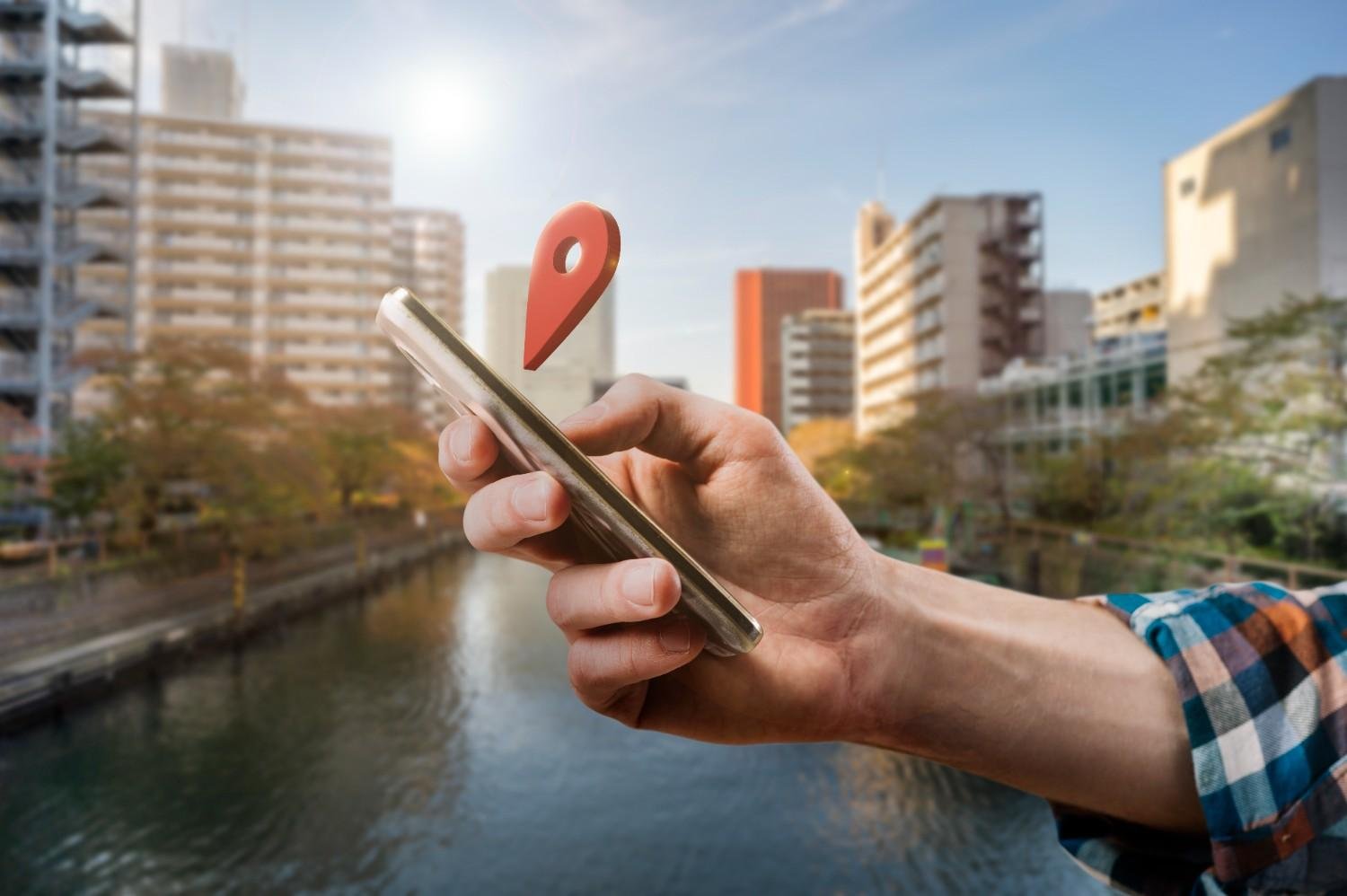
You can also drop pins using your laptop or desktop browser.
Step-by-Step Instructions
Step 1: Open Google Maps Website
Visit Google Maps in your browser.
Step 2: Navigate to Desired Location
Search or zoom into the exact area.
Step 3: Click the Spot
Left-click on the specific location.
Step 4: Pin Will Appear Instantly
A small grey pin appears, and location details open at the bottom.
Step 5: Use Available Options
You can now:
-
Save the location
-
Share the pin
-
Get directions
-
Add business details
This method makes it easy to Drop A Pin in Google Maps on Desktop.
How To Share a Dropped Pin
After you Drop A Pin in Google Maps, sharing is easy.
On Mobile:
-
Tap the dropped pin
-
Select “Share”
-
Choose WhatsApp, email, or copy link
On Desktop:
-
Click the dropped pin
-
Click “Share”
-
Copy the link or send directly
Businesses like MS Web Expert use this feature to share office locations with clients.
How To Save a Dropped Pin
Saving a pin helps you access locations later.
Steps:
-
Drop the pin
-
Tap “Save”
-
Choose category:
-
Favorites
-
Want to go
-
Starred places
-
This helps users organize important locations efficiently.
Practical Uses of Dropping a Pin
Here are common real-life uses:
1. Sharing Meeting Locations
You can share exact meeting points with friends or clients.
2. Saving Business Locations
Businesses can save competitor locations or new office spots.
3. Travel Planning
Travelers can mark hotels, restaurants, and attractions.
4. Delivery and Logistics
Delivery drivers use pins for accurate drop-off points.
5. Real Estate and Site Visits
Companies like MS Web Expert use pins to share property locations with clients.
Benefits of Using Google Maps Pin Feature
Accuracy
Pins provide exact location coordinates.
Easy Sharing
You can share locations instantly via link.
Better Navigation
Pins improve route planning.
Location Storage
Save locations for future use.
Business Growth
Helps customers find your business easily.
Common Problems and Solutions
Problem: Cannot drop a pin
Solution: Ensure you press and hold long enough on mobile or click correctly on desktop.
Problem: Pin disappears
Solution: Save the pin immediately after dropping it.
Problem: Cannot share pin
Solution: Check internet connection.
Tips for Using Google Maps Pins Effectively
-
Save important locations immediately
-
Label frequently visited places
-
Use pins for business location sharing
-
Organize saved locations into lists
-
Share pins with customers for easy access
MS Web Expert recommends using pinned locations to improve business accessibility and customer experience.
How Dropping Pins Helps Businesses
Businesses benefit greatly when they Drop A Pin in Google Maps.
Improves Local Visibility
Customers find your business easily.
Enhances Customer Trust
Exact location sharing builds credibility.
Improves Delivery Accuracy
Helpful for service and delivery businesses.
Supports Digital Marketing
Location sharing boosts Google presence.
MS Web Expert helps businesses optimize their Google Maps presence for better reach and customer engagement.
Conclusion
Knowing How To Drop A Pin in Google Maps on Mobile and Desktop is an essential skill for both personal and business use. Whether you’re sharing a meeting point, saving a favorite place, or helping customers locate your office, dropping a pin makes location sharing easy and accurate.
For businesses, using Google Maps effectively improves visibility, customer trust, and accessibility. MS Web Expert recommends integrating Google Maps location strategies into your digital presence to maximize results.
How To Drop A Pin in Google Maps on Mobile and Desktop
Add Me To Search: How To Create Your Google People Card Table of Contents Google Maps is one of the most powerful navigation tools available

How to Choose the Right Digital Marketing Agency for Your Business
How to Choose the Right Digital Marketing Agency for Your Business

Social Media Marketing Agency in Gurgaon: Why MS Web Expert is Your Ultimate Digital Growth Partner
Social Media Marketing Agency in Gurgaon: Why MS Web Expert is Your Ultimate Digital Growth Partner Social Media Marketing Agency in Gurgaon: Why MS Web
Add Me To Search: How To Create Your Google People Card
Add Me To Search: How To Create Your Google People Card The “Add me to search” query allows you to create a people card on

The Benefits of Social Media Marketing for Small Businesses
The Benefits of Social Media Marketing for Small Businesses In today’s digital age, social media marketing has become an essential tool for small businesses looking

Top SEO Strategies for Boosting Your Website’s Visibility
Top SEO Strategies for Boosting Your Website’s Visibility Search Engine Optimization (SEO) is essential for any business looking to increase its online presence and attract